Your phone probably holds years of photos, messages, contacts and notes. Phones get lost, stolen, dropped and broken every day, and without a backup those memories can disappear in a second. This Technicalinterest.Com tutorial explains how to back up your phone on iPhone and Android, and how to make sure the backup actually works.
Key takeaways
- Turn on automatic cloud backup on iPhone or Android today.
- Make sure photo backup is switched on separately.
- Chat apps like WhatsApp need their own backup settings.
- Check the date of your latest backup once a month.
- Use the 3-2-1 rule for photos you cannot replace.
- Keep your old phone until the backup is fully restored on the new one.
What should you back up?
- Photos and videos, usually the most precious and the largest files.
- Contacts and calendars.
- Messages and chat apps, which often have their own backup settings.
- App data and settings, so a new phone feels familiar straight away.
- Two-factor authentication codes, so you do not get locked out; see two-factor authentication explained.
How to back up an iPhone
Option 1: iCloud Backup (automatic)
- Connect to Wi-Fi and open Settings.
- Tap your name, then iCloud > iCloud Backup.
- Turn on Back Up This iPhone, then tap Back Up Now.
- Turn on iCloud Photos in the iCloud menu to keep your photo library in sync.
Your iPhone will then back up automatically when it is charging, locked and on Wi-Fi. Apple’s iPhone backup guide covers extra details.
Option 2: Back up to a computer
Connect the iPhone to a Mac (using Finder) or a Windows PC (using the Apple Devices app or iTunes) and choose Back Up Now. Tick the option to encrypt the backup so passwords and health data are included.
How to back up an Android phone
- Open Settings and search for Backup.
- Turn on Backup by Google One (or your phone maker’s backup service).
- Tap Back up now to create the first backup.
- Open the Google Photos app and turn on Backup for photos and videos.
Menu names vary slightly between brands. Google’s Android backup help page explains the options for most devices.
Do not forget your chat apps
Apps such as WhatsApp and Signal manage their own backups. Open each app’s settings, find the chats or backup section and switch on regular backups, ideally with encryption.
Free storage or paid plan?
Free cloud storage tiers fill up quickly once photos are included. A small paid plan is often the simplest solution. You can also reduce what needs backing up by following our guide to free up phone storage.
Test your backup
A backup you have never checked is just a hope. Once a month:
- Confirm the date of the latest backup in your settings.
- Open your photo library on a computer or the web to make sure recent photos are there.
- Check that your contacts appear in your online account.
Follow the 3-2-1 rule for precious files
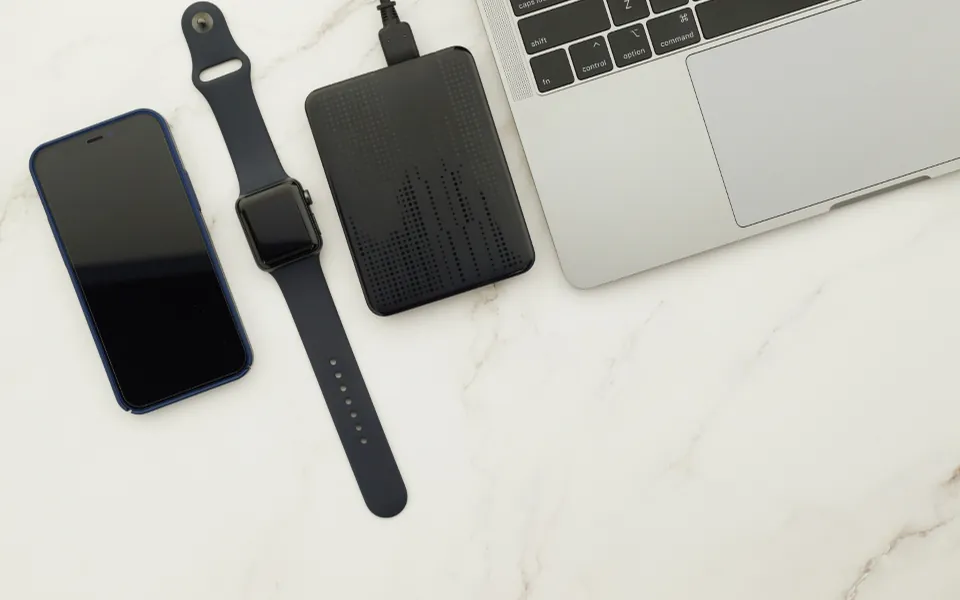
For irreplaceable photos, keep three copies, on two different types of storage, with one copy away from home. For example: your phone, a cloud backup and an occasional copy on an external drive.
Two-minute task: open your backup settings today and check the date of your last backup. If it is weeks old, fix it now.
A good backup also makes repairs and upgrades stress-free, whether you are replacing a battery as described in our right to repair guide or moving to a new device.
Restoring your backup on a new phone
When you set up a new or reset phone, you will be asked whether to restore from a backup. On iPhone, choose your latest iCloud or computer backup during setup. On Android, sign in with the same Google account and pick the backup you want to restore. Keep the old phone charged until you have confirmed that photos, contacts, chats and authenticator apps all work on the new device.
Restoring can take a while, especially with a large photo library, so connect to Wi-Fi and a charger and let it finish overnight if necessary.
Backups for work phones
If your phone is managed by your employer, work data may be backed up by company systems rather than your personal cloud account. Check with your IT team before relying on a personal backup for work files, and keep personal photos in your own account so you do not lose them if you change jobs.
Frequently asked questions
How often should I back up my phone?
Set backups to run automatically every day. Cloud backups on iPhone and Android do this when the phone is charging and connected to Wi-Fi.
Does a phone backup include my photos?
Not always. Photos are often stored separately in iCloud Photos or Google Photos, so make sure photo backup is turned on as well.
Can I move a backup from iPhone to Android?
Not directly, but tools from Apple and Google can transfer contacts, photos and many messages when you switch platforms.
Is iCloud or Google backup encrypted?
Both services encrypt data in transit and on their servers, and both offer extra end-to-end encryption options for certain types of data. Check your account’s security settings for details.
Find more step-by-step tutorials in the How-To Guides hub on Technicalinterest.Com.